Used by millions worldwide, Google Drive is the go-to cloud storage solution, but how secure is it in 2026? The answer isn’t as simple as yes or no.
While Google Drive offers strong protection against hackers, true privacy is a different story. Being secure from external threats doesn’t always mean your data is fully private.
In this guide, we break down how Google Drive protects your files, where it falls short, and what you can do to keep your data safer, whether you’re a casual user or handling sensitive information.
What is Google Drive?
In case you’re wondering, what’s even this Google Drive we are on about? Google Drive is Google’s cloud storage platform. It’s bundled into every Google Account, including Gmail, Google Docs, and Google Photos.
Every account comes with 15 GB of free storage that you can use to save things on Gmail, Drive, and Photos. But there’re paid plans to get additional storage, starting from 100 GB.
One very cool thing about Google Drive is that it isn’t platform-specific and it doesn’t discriminate, it works on virtually every platform. Whether you’re using Windows, iOS, macOS, or Android, it works well on any device and even comes pre-installed on most Android devices.
You can upload files, collaborate in real time on documents, and share content with others through a link or direct email invitation. Google Drive is deeply woven into how a large number of people work and live.
Google Drive’s pretty convenient, we can’t even deny that. But there’s a big difference between “convenience” and “privacy,” and that’s the tricky part.
Is Google Drive Truly Secure?
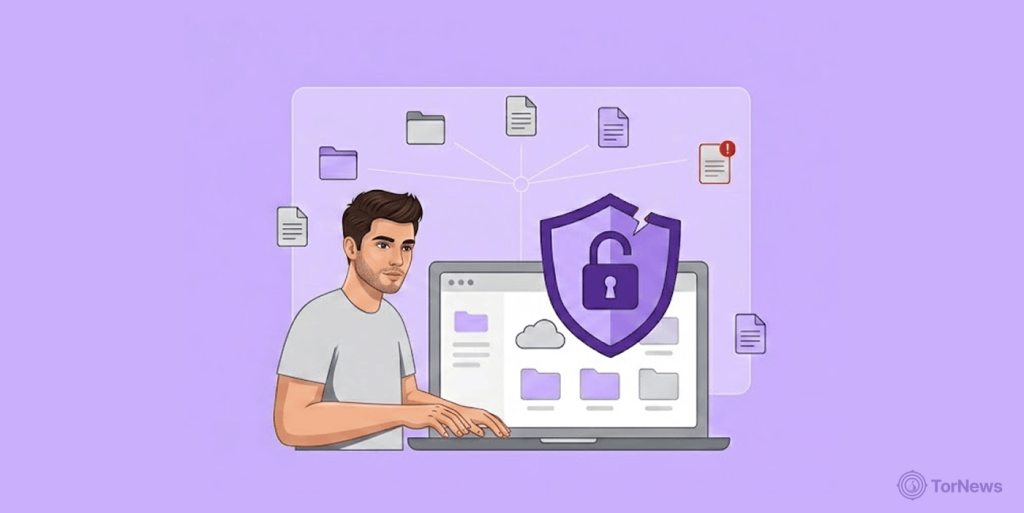
This is one question every cloud storage user should seek an answer to. To put it simply, yes, to a large extent, Google Drive is secure. It uses solid, industry standard protections that keeps your files safe from external threats. For everyday uses like storing photos, documents, general work files, Google Drive is a reasonable and well-protected option.
However, that something’s secure doesn’t automatically mean it’s private. Google can access your files. Though it says it doesn’t access your data for advertising, it can and does respond to lawful government requests. If they receive a subpoena asking for information about you or to release certain files you stored on Google Drive, they have no choice but to oblige.
Understanding this distinction between something being ‘private’ and ‘secure’ is the most important thing you can take away from this guide.
How Actually Does Google Drive Protect Your Data?
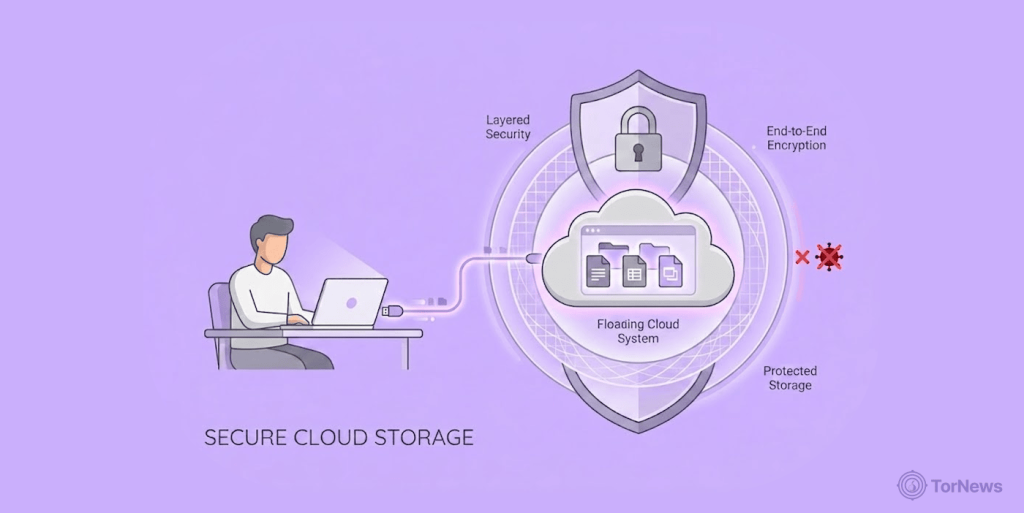
Before we talk about the risks, let’s give credit where it’s due. Google Drive isn’t running on some flimsy setup. They’re actually serious about keeping your data safe. So they have certain protocols in place to make that happen:
The First is Encryption in Transit
Every time a file moves from your device to Google’s servers or vice versa, it’s encrypted using TLS (Transport Layer Security). TLS is a standard security protocol that everyone uses these days for securing almost all internet traffic, email, bank sites, and even government portals.
Then There’s Encryption at Rest
Security doesn’t just end after moving files. Even when the file has reached the destination and is now stored on Google’s servers, there’s a provision for keeping it safe and tamper-proof. That’s here where encryption at rest comes in. For this, Google uses the AES standard.
Google usually goes with AES-128 for encryption, but they’ve started rolling out AES-256 on newer systems, according to their infrastructure documentation. Both are tough nuts to crack, like military and government-level kind of security.
Either way, your files are getting wrapped up tight with encryption. Unless someone’s got the key to decrypt it, your memes and spreadsheets are safe. But (there’s always a but), Google still holds the keys. Which means, if Google decides to take a peek at your files, they can.
Or law enforcement shows up with a legal warrant, Google would have to grant them access to your stuff. And suddenly, you realise your “private” files aren’t so private.
2FA (Two Factor Authentication)
Google supports 2FA for all accounts. Once you enable it, logging in will require your password plus a second verification. For the second verification, you’re often asked to input a on-time code or time-based code from an authenticator app like Authy or Google Authenticator, or a physical security key.
On the bright side, if you turn on 2FA (which you should, seriously) it’s actually one of the strongest shields you can get. Someone steals your password? Tough luck for them, they still can’t access your files unless they somehow grab your phone or whatever you’re using as the second step.
Plus, Google’s watching your account like a hawk; if they spot anything odd (random device access, weird location, someone logging in from, like, Belarus when you’re still in Hong Kong), they’ll give you a heads up.
Access controls
Anything you upload to Google Drive is private by default. Nobody else can see it unless you actually want them to and you share it. You can share files with anyone by email. You can create shareable links too, and just pick who gets to do what (view, edit, comment).
Lets you make a file totally public if you like, so literally anyone with the link can view, edit stuff, or leave comments. And there’s the expiring link feature for those using Google Workspace at school or work. Those links basically self-destruct after a while, which is handy when you only need to grant temporary access.
The safest setting is always “Restricted”. Sure, public links are convenient, but they carry risks, which we’ll still come back to later.
Are Files and Links in Google Drive Secure?
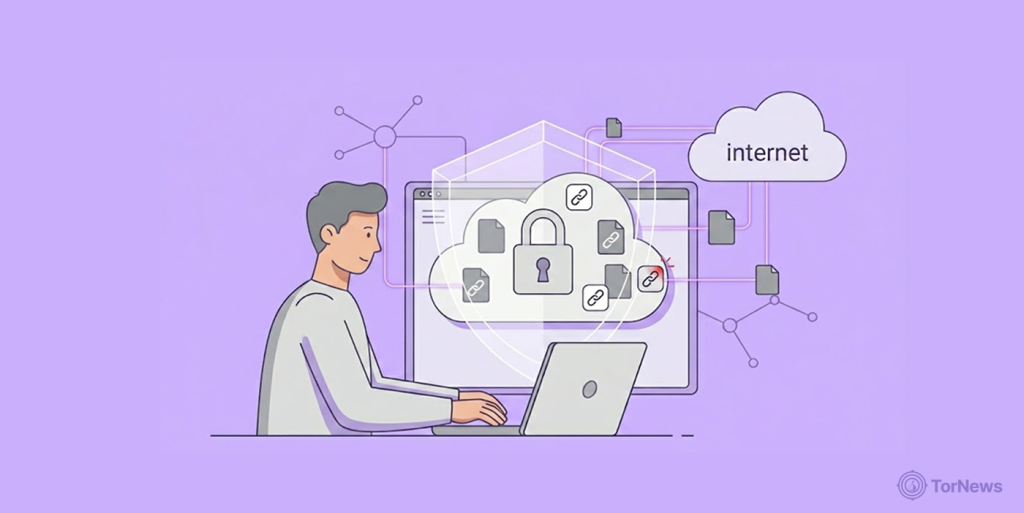
Like we said earlier, when your file is just sitting in Google Drive or moving between and Google and a recipient or for storage, it gets wrapped up with encryption. If anyone tries to intercept it, without the decryption key, they’d see only total nonsense. So, the risk doesn’t lie with the file itself; the weak point to worry about is usually the link.
Sharing files using that “anyone with the link” option? It means you’re literally handing the access key to anyone, even if they stumble upon it by accident. The receiver might forward that link to someone else, post it online, or even search engines can accidentally index it.
Whoever stumbles upon the URL can see what’s in the file without any authentication. Google has no way to know whether it’s you clicking the link or a stranger who just happens to see it on some random forum online.
The practical rule? Use “Restricted” sharing whenever a file you’re sharing contains something you wouldn’t want a stranger to read. Stick with private links for anything you don’t want just anyone to see, and leave public links for files that are truly for public view.
Is Google Drive End-to-End Encrypted?
Not by default. This is one very important thing to understand about Google Drive. End-to-end encryption means only you and your recipient hold the keys, not even Google can read what’s inside the file. Messenger app Signal operates like that. But Google Drive? Doesn’t work that way, at least not by default.
Yes, Google Drive does encrypt your files, but Google also holds the decryption keys and can access the files if it chooses to. Or if a government agency presents a valid legal request, they can hand over access to your files.
Google said so in their Transparency Report that they received thousands of government requests for users’ data and they actually complied with the majority of those requests.
But it’s not all gloomy. There’s actually a stronger option than Drive’s default encryption, which is called client-side encryption. Some Google Workspace Enterprise and Education plans offer it. Enabling client-side encryption means encryption and decryption will happen on your own device, not on Google’s server.
Google won’t hold the encryption keys and will never view your file content. But this isn’t available by default; your IT admin would need to configure it. And also, you can’t get it on standard personal accounts.
If what you’re doing on your personal Google account absolutely requires true end-to-end privacy, Google Drive alone won’t cut it.
Why you Might have Concerns About Google Drive
Google Drive does a very decent job of protecting your data from external attackers. The real concerns here aren’t about hackers, but about the nature of Google’s relationship with your data.
Google Retains Access to Your Files
Let’s say you stick with Google’s default encryption, Google remains the boss. They manage the encryption keys and can access your content at any time for whatever reason their terms of service or the law permits.
Accepted the terms of service? You’ve basically granted Google permission to scan your files to see if you violated any of their policies, sniff out spams, or to enable AI features like autocomplete and spell check. According to Google, data used this way remains anonymous, but as the average user, you have no way of verifying whether this is true on your own.
If a sophisticated attacker ever breaches Google’s infrastructure and accesses not just files but encryption keys, they could decrypt stored data, yours included. Though a harder feat to achieve than stealing ordinary files, it’s still a real concern worth considering for anyone storing highly sensitive material.
US Jurisdiction and Government Access
Google’s headquarters is in the United States, meaning US law governs how it responds to government data requests. That includes FISA (Foreign Intelligence Surveillance Act) courts, which authorize broad surveillance programs and have historically approved the large majority of government applications.
National Security Letters, that’s requests the FBI can issue to companies to obtain records without judicial review, is also inclusive. And these NSLs come with a gag order preventing the company from disclosing said request. If you’re residing outside the US and you’re worried your data is subject to American legal authority, your concerns are totally valid.
For those seeking truly private communication and storage options that aren’t subject to US jurisdiction, alternative platforms exist. Our guide to the best secure email services compares privacy-focused providers like ProtonMail, Tutanota, and Mailfence that offer end-to-end encryption and are based in jurisdictions with stronger privacy protections than the United States.
Google’s Underlying Business Model
Google gets the majority over 80 percent of its revenue through advertising, according to reports. That’s just how they make their money. Google says it doesn’t use content from Drive, Doc, Sheets, and Slides to target ads, but the company’s track record on privacy transparency makes this hardly believable.
A few years ago, reports revealed that even if users switched off their GPS or location services on Android phones, Google was still collecting their location data. Then, later on, a court penalized Google for misleading Chrome users with a confusing Incognito mode feature that made them believe their internet browsing activities were private when they were anything but.
These incidents are not Drive-specific. But they’re still relevant when deciding how much trust you should put in Google when it comes to storing your personal files.
Google Drive Risks to be Aware of
Nothing in this world is without risks, and Google Drive isn’t an exception, even with its built-in protections. The most common sources of headache have little to do with the possibility of hackers breaching Google’s servers. Instead they come from how people use the product:
1. Misconfigured Sharing Settings: What Causes Issues Most Times
You think you’re just sharing a doc with your friend or your boss, but you accidentally let the entire universe see what’s inside. One single click, switching from “Restricted” to “Anyone with the link,” and your resume, vacation photos, or kid’s report card can become open for anyone who stumbles upon.
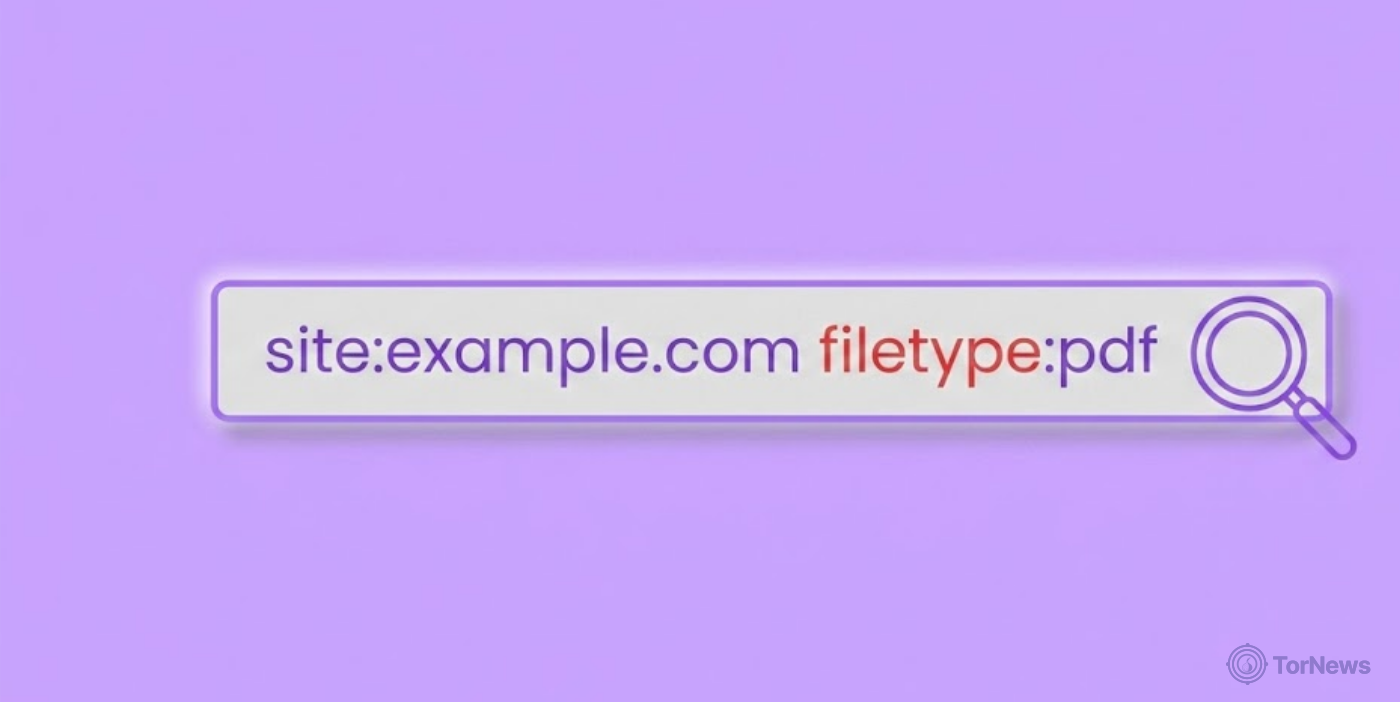
These misconfigured files aren’t just sitting there unnoticed. Google dorking techniques allow anyone to search for and find these publicly exposed documents using advanced search operators, turning your accidental overshare into a discovery for hackers, identity thieves, or nosy strangers. If such a mistake happens in your workplace, confidential contracts or students’ info can be exposed, and that’s an even bigger problem.
What to do:Keep an eye on your shared files once in a while. To do this on Google Drive, click on the search drop down menu and filter for “Shared with Anyone with the link”. Do you see anything that was unintentionally made public? Set it to “Restrict.” Sounds suspicious? Maybe. But I’ve seen people accidentally share tax documents this way.
2. Account Takeovers
If someone worms their way into your Google account, you’re in trouble. They get the whole enchilada, every doc, every photo, your slides, every note you’ve ever written.
Hackers do not need any magic tricks, they often use techniques such as phishing fake Google logins that often look so real you’d hardly tell it’s not and credential stuffing using login credentials they got from other breaches.
What to do: Take internet security seriously; enable two-step authentication, and don’t reuse a password for multiple accounts. Also, check on sites like haveibeenpwned.com to see if your personal data like email address is leaked online. And if you find any of your info there, whether email or phone number, change it and get a new one.
3. Third-Party App Permissions
You know those handy apps you connected to save time, maybe a calendar tool, a survey builder, scheduling app? Over time, you forget half of them, but they’re still sitting there, chugging away with access you may have granted to your Drive. Some apps disappear from the web entirely or the developers abandon them, leaving behind open doors for anyone to walk through.
What to do: Head over to myaccount.google.com, hit Security, scroll to “Third-party apps with account access.” If you don’t recognize something or haven’t used it since a long time ago, revoke access.
4. Phishing and Malware
Hackers have really leveled up their game. Now they’re sending you ultra-legit-looking Google Doc invites with links so real you almost click them. Don’t rush to click. That link might send you off to a very convincing fake login page designed to nab your password, or even load some malware onto your computer if you open the wrong doc.
This tactic is part of a broader surge in cyber threats, including zero-click vulnerabilities that can compromise devices without any user interaction, and infostealer malware that operates silently in the background, making constant vigilance and security updates critical.
What to do: Don’t trust random invites. If something just feels off, don’t click the link; go type drive.google.com into your browser and verify. Be suspicious of vague subjects like “Please review ASAP” from people you barely know. And just remember: Google’s never going to ask for your password in a shared doc.
5. Internal Data Leaks
The biggest issues happen right under your nose, inside your own team or company. Someone shares a folder, totally forgetting there’s confidential stuff contained in some subfolder.
Or that outgoing freelancer still has access to everything months after their contract ended. Files get sent to the wrong Dana, and you’re scrambling for damage control.
What to do: Set a reminder to check Drive sharing every few months, and put it on your calendar. Whenever someone leaves your organization, revoke their access quickly before they even log off. Put in place policies on what documents are okay to share externally and the correct permission level, and make it clear to everyone in your team.
Is Google Drive Safe for Confidential Information?
That’ll depend on what kind of confidential information, and being specific is important here:
For Everyday Business Documents?
Google Drive is a workable option for things like project files, meeting notes, internal reports, general correspondence, etc. It has proper access controls in place to ensure only the right people access these files.
For Regulated Data?
Things get a bit more complicated when you’re dealing with data associated with industries such as healthcare, finance and legal documents because these categories of data are often governed by strict laws. So you have to do more than just relying on Google’s security features. Let’s see if Google Drive is sufficient for handling these kinds of information:
- Healthcare (regulated by HIPAA): Google does offer a Business Associate Agreement (BAA) for Google Workspace customers, which is a prerequisite for HIPAA-compliant use. But the BAA is just the starting point; you also need correctly configured access controls, audit logging enabled, and clear data handling policies.
- Financial data (PCI-DSS regulated): Google Drive isn’t PCI-DSS certified by default. Organizations processing card data should not store raw payment card information in Drive. For related financial records, invoices, contracts, and reports, it can work with proper controls.
- Legal documents: Google Drive can work for legal teams, but sensitive client matter files warrant additional precautions, at a minimum, restricted sharing, and ideally client-side encryption for the most privileged material.
- Personally identifiable information & GDPR: Under GDPR, you have added responsibilities if you handle sensitive information. There are also some helpful tools and Data Processing Agreements available through Google to help you be compliant with GDPR, but these tools may not work with the latest GDPR specifications or provide settings for compliance by default out of the box. So you need to get hands-on management access controls yourself to define who can see what, review data retention timelines, and pay attention to your file sharing setups.
- One universal rule: Never store passwords in Google Drive, whether in a document, spreadsheet, whatever; just don’t even consider it. Instead, get a password manager to help you store and manage passwords securely.
Is Google Drive Safe for Private Photos?
Honestly, Google Drive is decent enough for storing personal photos. Any file you upload there gets encrypted, stays private unless you actually decide to share it, and random people can’t just access it. Still, a couple things you should really keep in mind.
One, Google technically does have the decryption keys, meaning they can get into your files if they want to, and their systems do scan everything for policy violations. Take, for example, an incident where a father in the US had his Google account suspended because Google’s automated checks flagged medical photos he took of his toddler for a doctor’s visit. Cops got involved.
Eventually, they cleared him, but Google never gave his account back. So when they say “private,” it just means “other regular folks can’t see it.” The file is not private from Google itself.
The other thing, if you’re storing a large volume of photos, maybe look at Google Photos instead of Drive. It’s got the same encryption, but it’s built for photos: you get facial recognition, albums organization, even some basic editing tools instead of just a giant folder mess. Makes life easier.
Is Google Drive Safe from Hackers?
Google Drive does a pretty solid job fending off outside hackers. Google runs one of the most aggressively monitored infrastructure environments on the planet. We’re talking AI-powered threat detection layered under 24/7 human oversight, plus a whole army of cyber engineers whose job is just to keep outsiders out.
For the average folks worried about opportunistic hackers, Google Drive simply isn’t an easy target. The investment Google makes in infrastructure security is genuinely substantial, larger than most organizations could replicate independently.
The last time there was a major breach affecting Google consumer accounts was in 2018. The now-defunct Google+ had a security bug that exposed the personal data of over 50 million users. That’s a meaningful gap in the incident record. Though it’s worth noting the absence of reported breaches doesn’t mean zero risk, just well-managed risk.
For most users, the bigger threat isn’t a Google data center being compromised. It’s their own account being hijacked through phishing or weak credentials. But using a strong password and 2FA can address that risk far more directly.
Is Google Drive Secure for Business?
For most business use cases, yes, particularly through Google Workspace, which adds significant administrative and security controls on top of what standard accounts offer.
Granular Admin Controls
On the administrative side, Workspace offers IT teams granular controls that standard accounts lack, like restricting external sharing entirely, limiting it to trusted domains, or enforcing permission defaults that apply across the whole organization.
Then There’s Advanced Threat Detection
Google’s security features in Workspace are pretty top-notch. They baked phishing and malware protection directly into the file-sharing flow. This cuts down on the kind of social engineering attacks that usually exploit shared documents.
Audit Logging is Genuinely Useful for Compliance
For admins on Google Workspace, they can audit logs that basically spill the tea on everything: who viewed what, every edit and downloads, and even when someone shared a file. Every action shows along with the timestamps.
So if someone claims, “I swear I didn’t touch that file,” the logs settle it immediately. For businesses that needs to reconstruct activity during compliance auditing and after an incident, that’s non-negotiable.
Data Loss Prevention (DLP)
For organizations handling sensitive data, Workspace offers DLP rules that scan documents for patterns like credit card or Social Security numbers. If it detects any of those on any file, it automatically blocks sharing on that file.
Client-Side Encryption Helps too
Available on Workspace Enterprise Plus and certain Education plans. For businesses that even the thought that Google has remote access to file content is a dealbreaker, this feature is a lifesaver. Though it’s an overkill for most businesses.
These enhanced security measures are part of Google’s broader commitment to user protection, a commitment that also includes legal action against Chinese hackers, pushing for new laws to combat scams, and reinforcing that cybersecurity requires both technical safeguards and legal enforcement.
If you’re in healthcare, legal, or finance with regulations like FINRA or HIPAA watching your every move, Google Drive can meet compliance requirements. But not out of the box.
Its default settings aren’t built for these regulations; your compliance and IT teams should be involved before sensitive information goes into Google Drive. Workspace has the layers you need; you just need to set them up correctly.
Is Google Drive Secure for Financial Information?
Google Drive gets the job done for everyday financial documents such as invoices, expense reports, budget spreadsheets, and even vendor contracts as long as you’re not sloppy with managing access controls.
Where the risk is much is when you’re working with genuinely sensitive items like bank statements, card details, Social Security numbers, information that has absolutely no business going public. For that kind of data, you want to be a lot more careful:
- Set all things financial to ‘Restricted’. Only invite specific people who absolutely need them. No random “anyone with the link” business.
- Apply the least-privilege principle. If someone doesn’t need that file for their job, they shouldn’t have permission to open it.
- For most sensitive files, do NOT upload without encrypting them first (using tools like VeraCrypt, or consider using a password-protected PDF would suffice).
- Remember to review access logs once in a while. Basically, to make sure someone’s not accessing things they shouldn’t.
Organizations handling high volumes of payment info or operating under financial regulatory frameworks need something more purpose-built. Google Drive is not built for that use case. Use a proper compliant storage tool and sleep better.
Is Google Drive Safe to Download from?
Yes, for the most part, but you have to still apply caution. It all comes down to what you’re actually downloading and who sent you the link.
Google runs basic malware scans on files before you download them and will warn you if something looks suspicious. That’s helpful, but it’s not a guarantee. New threats can slip past the checks, and Google can’t scan very large or encrypted files.
Treat Drive downloads same way you’d treat any file from the internet. If you weren’t expecting a file, confirm with the sender first. Keep your antivirus running and updated a default program like Windows Defender is fine.
And pay attention to files like .exe, .zip, or those macro-enabled Office files like .docm for Word and .xlsm for Excel. Scammers like using those formats to deliver malware.
How to Make Google Drive More Secure
Whether you’re an individual or managing a team, following these steps appropriately will, to a greater extent, make your Google Drive security stronger:
1. Never Use Weak Passwords and Avoid Reusing One on Several Accounts
Ditch the easy-to-guess ‘password123’ and make it strong, unique and long. Like 12 characters at least, mixed up with letters, numbers, special symbols. Don’t recycle the same password from your Facebook in your PayPal or anywhere else.
Get a password manager if trying to remember many passwords feels like a pain. Free ones like Bitwarden will do the trick quite alright. Or you can try 1Password or maybe even the one built into Chrome; all are solid bets.
2. Always Enable Two-Factor Authentication
This one’s a lifesaver. Go to your Google Account: myaccount.google.com > Security > 2-Step Verification. It helps to ensure that no random person can get into your account without your permission just because they got their hands on your email and password.
For the verification code, choose an authenticator app, not SMS (codes sent via text message are easier to steal than in apps).
3. Audit Your Sharing Settings
Log into Google Drive and use the search filters to find files that have “Anyone with the link” permission. Review everything and restrict any file that doesn’t need to be public.
4. Review Third-Party App Access
Go to myaccount.google.com >Security >Third-party apps and locate the apps that you granted access to your Google account. If you’re not actively using any app, revoke the permission.
5. Watch out for Phishing
Would you click a sketchy link just because your “bank” texted you? Please say no. Same rule here: Don’t click links in unexpected emails, instead just go directly to drive.google.com yourself. And if a “colleague” shares a file you didn’t ask for? Pause and double-check first.
6. Encrypt the Really Sensitive Files before Uploading
Got files you’d lose sleep over? Encrypt those before you upload. VeraCrypt works if you’re serious about security, or just set a password on a PDF or Office doc lighter-weight option, but it helps. Either approach works to make your files more secure that not even Google can peek inside without the key.
7. Revoke Access Immediately People Leave
When an employee, partner, contractor, etc. leaves, revoke their Drive access ASAP. Shared folders are sneaky; people hang onto permissions for ages, long after they should have been removed. Remove users right away so nothing awkward leaks later.
That’s the basics. Do all this and you’ll be ahead of 99% of people out there who are just winging it.
Conclusion
Google Drive is secure against most external threats, thanks to strong encryption and solid access controls. But when it comes to privacy, it’s not fully in your hands, Google can technically access your data under certain conditions.
For everyday use, it’s a safe and convenient option. However, for highly sensitive or confidential files, extra caution or alternative tools may be necessary. Secure enough for most users, but not fully private, so lock it down with 2FA, a strong password, and strict sharing settings.
FAQs
Yes, malware can reach Google Drive if an infected device syncs malicious files. Version history helps you roll back to a clean copy, but it’s not a backup. Keep separate backups of important files and maintain strong endpoint security; regular antivirus and system updates are essential.
Google Drive doesn’t support native password protection. You’ll need to secure files before uploading, use built-in password protection in Word, Excel, or PDF apps. On Android (8+), you can also use Safe Folder to PIN-lock files locally (not within Drive).
Google Drive provides tools to support GDPR compliance like encryption and access controls, but it’s not automatic. You still need to properly configure permissions, manage data policies, and control access. Using Drive alone doesn’t make you compliant.
Yes, but only with the right safeguards. Use strong authentication, restricted sharing, and client-side encryption for sensitive data. Legal standards require protecting client information, which means recognizing that cloud providers may access unencrypted files. For highly confidential matters, encryption or specialized legal storage tools are the safer option.
Yes. Sharing a Google Drive link set to “Restricted” is generally safer than emailing attachments. Email files can pass through multiple servers, increasing exposure risk. In contrast, a restricted Drive link limits access to specific users and lets you revoke it anytime, giving you more control and security.