The Tor Browser provides you with full control over your online privacy. Usually, standard web browsers will log your online search history and may even share data with some third-party online trackers. On the other hand, the Tor network takes your internet activities to a different level via encrypted nodes across the globe. This process conceals your location and shields your identity.
Thus, completing a proper Tor setup guide ensures your connection stays secure against network surveillance. This guide covers everything you need for a smooth Tor installation across all desktop and mobile devices.
What Tor Browser Actually Does

Protects Your Identity Using Onion Routing
Standard web browsers connect your device straight to a server. That setup reveals your IP address and personal location. In contrast, Tor routes your traffic through three encrypted nodes.
Before diving into how Tor works, it is also important to understand whether the browser is actually safe to use and what risks it can and cannot protect you from. Our guide on whether Tor Browser is safe to use explains the key security considerations users should know before relying on Tor for private browsing.
- Entry Node (Guard Relay): Connects to your computer. It sees your real IP address but cannot see your ultimate destination.
- Middle Node: Passes encrypted data between servers. It knows neither your origin nor your destination.
- Exit Node: Decrypts the final layer. It sends your request to the destination website.
Each relay removes a single layer of encryption from total privacy. In this way, no one node can determine both your identity and destination. This three-node relay system helps to prevent any snoopers from connecting your actions online to your identity.
Hardens Firefox Against Fingerprinting
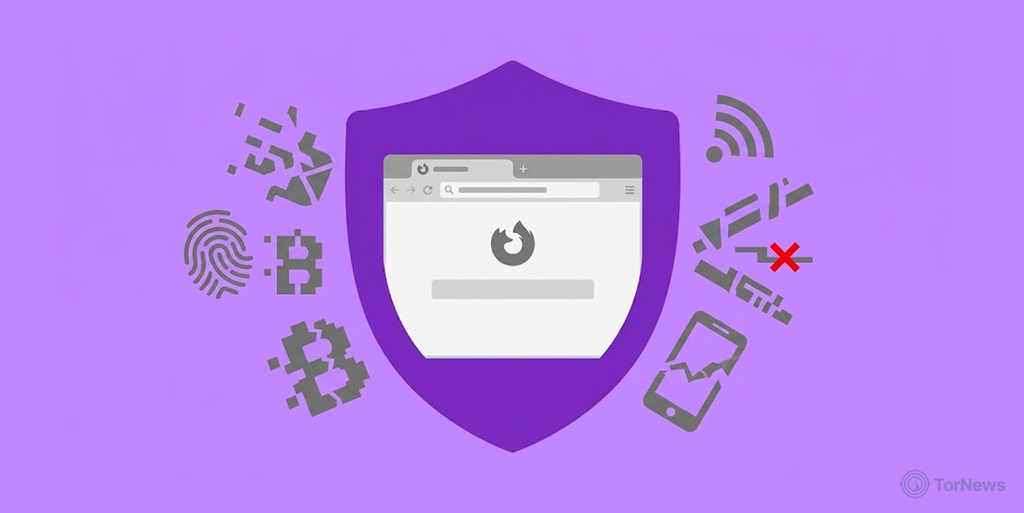
Tor Browser has its anchor on the Mozilla Firefox ESR (Extended Support Release) version. However, developers strip out tracking telemetry and modify its core code. These heavy modifications actively resist browser fingerprinting.
Fingerprinting takes place when web pages collect various information characterizing the user’s system to track him or her without using cookies. The trackers check the type of operating system, the screen resolution, the fonts installed in the system, the time zone, and the video card the user uses on their device.
Tor Browser neutralizes this tracking technique through strict uniformity:
- Letterboxing: Adds gray margins around web pages to force standard window dimensions. This prevents sites from identifying you by your monitor resolution.
- Standardized system signals: Reports your time zone as UTC regardless of your real location. It also spoofs your user-agent string and restricts system font reporting.
- Canvas and API protections: Restricts HTML5 canvas image readbacks and WebGL execution. These APIs usually allow scripts to fingerprint your graphics hardware.
By forcing every user to return identical hardware signals, Tor blends your device into a crowd of millions. Trackers only see a generic Tor user rather than your specific machine.
The steps below provide a complete Tor Browser Setup guide:
Step 1: Download from torproject.org Only
By downloading from an untrusted website, users expose themselves and their computers to malicious software. Cybercriminals use malicious installers, including spyware and Trojans, when creating installers that look legitimate.
Always download the official package directly from torproject.org. When downloading your installer file, grab the accompanying signature file too. Look for the link labeled Signature (it ends in .asc). Save both files into the same download folder on your machine.
If censorship blocks the official site in your location, send an email to [email protected]. Write your operating system name in the message body. Their automated system will reply with safe mirror links.
Step 2: Validate the PGP Signature
Before executing your Tor browser setup program, you need a signature check. Conducting a signature verification gives you the peace of mind of knowing that your file originated from authentic developers and is free from interference.
Basically, PGP (Pretty Good Privacy) uses cryptographic signatures to strengthen the integrity of the file you plan to use, resisting any modifications before you start the process of installing Tor Browser.
To confirm the downloaded files, you have to perform the sub-steps as follows:
- Install GnuPG or GPG: You should download and install Gpg4win for Windows, and install GPG Suite on macOS. Assume you want to know how to install Tor Browser in Linux safely; you will first get GPG via your package manager.
- Import the signing key: Open your terminal or command prompt and import the official developer key directly using the Web Key Directory.
- Export the keyring: Save the public key into a local keyring file inside your working directory.
- Execute the verification command: Move to the downloads folder and run ‘gpgv’ to verify the installer against the .asc signature file.
- Confirm the output result: Check the terminal output for the string gpgv: Good signature from ‘Tor Browser Developers (signing key) [email protected].’ Seeing Good signature confirms your download is authentic, allowing you to proceed with your Tor setup guide on any operating system.
Step 3: Proceed with Installation on macOS, Windows and Linux
Once you’ve confirmed that you’ve downloaded the files, you may continue with the proper Tor installation. The process differs according to the operating system, but the end outcome across all devices stays the same; it keeps your browsing environment fully isolated.
Windows
- Running the installer: To execute the installer file, you will need to double-click on the .exe file that you downloaded earlier.
- Choosing the installation folder: Select a location or preferred directory to install the Tor Browser app. As the browser is portable, it installs directly into a single folder without any modifications to the Windows System Registry.
- Finishing the installation: Complete the process by clicking on the Install and Finish buttons. It will install your Tor Browser on your Windows computer.
macOS
- Open the DMG file: Simply double-click the downloaded .dmg file. This helps you to mount the disk image.
- Go to applications: Continue by dragging the Tor Browser icon into your Applications folder.
- Handle gatekeeper warnings: If macOS blocks launch because the app is from an unverified developer, right-click the app icon. Then, proceed to click Open, and finally confirm the prompt.
How to Install Tor Browser on Linux
- Extract the archive: Open your terminal. Then go to the Downloads folder and extract the contents of your .tar.xz file.
- Navigate to the directory: Move into the newly extracted folder.
- Register desktop application: Run the startup script to launch the app and register it with your system menu.
How to Install Tor Browser in Kali Linux
Kali Linux runs as a security-focused distribution, so installing packages requires specific user permissions.
- Update package index: Open the terminal and refresh your local package list.
- Install via package manager: Avoid running Tor directly as root. Install the official wrapper package instead.
- Launch as standard user: Run torbrowser-launcher from a non-root user account to automatically fetch, verify, and launch the latest release.
Step 4: Choose Your Security Level
After installing the browser on your device, you have to select the safety level. Tor Browser consists of three security levels, which are accessible through a shield icon next to the address bar. Selecting the security level meaningfully balances the operation of the web for protection and helps deal with ever-evolving browser threats.
The three security levels operate as follows:
- Standard level: Makes it possible to access all the features of the web by default and enjoy a typical browsing experience. While it may offer convenience, the standard mode exposes you to complex JavaScript exploits and web tracking scripts.
- Safer level: Turns JavaScript off on non-HTTPS websites and disables risky web fonts and video/audio codecs. This mode offers a strong balance between usability and advanced web security.
- Safest level: Disables JavaScript across all websites by default and blocks inline images, SVG media, and math symbols. Choose this level when accessing high-risk onion services or operating under severe surveillance threats.
Step 5: First-Launch Checklist
Launching the browser for the first time starts the core setup process. Before visiting any onion sites or clear web destinations, complete this quick operational checklist:
- Connect to the network: On the initial screen, toggle Always connect automatically and click Connect. If your local internet provider blocks Tor, click Configure Connection instead of setting up censorship bypass options.
- Keep window dimensions default: Do not maximize the browser window or resize it manually. This is because the default window size uses letterboxing to conceal your monitor resolution from web trackers.
- Avoid extra browser add-ons: Avoid using any external extensions when browsing because they create unique tracking patches or signals that defeat anti-cookie defenses.
- Verify built-in HTTPS enforcement: Confirm that HTTPS-Only Mode stays enabled inside browser settings. This setting encrypts all traffic between the Tor exit relay and destination websites.
Step 6: Configure Bridges for Censored Regions
National firewalls and internet service providers sometimes block connections to known Tor relays. When direct access to the network fails, your setup guide requires using pluggable transports (known as bridges). Bridges conceal your traffic, making it resemble regular web activity to bypass network filters.
To enable bridges inside your settings, follow these steps:
- Access connection settings: Click Configure Connection when launching the browser, or navigate to Settings > Connection if the browser is already open.
- Choose built-In Bridges: Under the Bridges section, select Choose from one of the built-in bridges on the Tor Browser.
- Select your transport protocol: Pick the pluggable transport that best fits your local network conditions.
- obfs4: It camouflages your web traffic as meaningless data to avoid deep packet inspection of your data.
- Snowflake: It connects you through various volunteer proxy servers, making it look like a normal WebRTC video call.
- WebTunnel: Wraps your connection inside standard HTTPS traffic to hide behind regular web requests.
- Request custom bridges: If built-in options remain blocked, click on Request a bridge from torproject.org, and solve a CAPTCHA to get new bridge addresses. You could also email [email protected] using Gmail/Outlook, and get the custom bridges.
When Not to Use Tor Browser
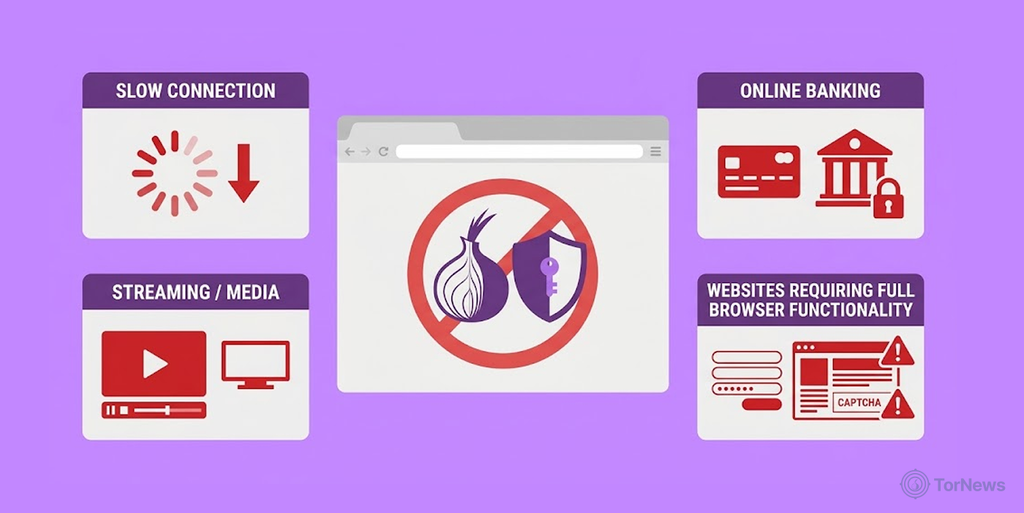
Tor may provide excellent privacy, but misusing it can limit effectiveness and allow identity exposure. It’s important to be aware of it in order to avoid major privacy mishaps when online.
Avoid using Tor Browser under these specific scenarios:
File Sharing and Torrenting
BitTorrent software and P2P networking often skip proxies and create direct socket connections. This move leads to losing the real IP address and also has a strong negative effect on the entire Tor network.
Logging into Personal Accounts
The act of logging into personal accounts such as banking, personal email, or social media allows the website to tie its data to the true identity of a user. Once authenticated, the website knows exactly who you are, defeating the purpose of an anonymous connection.
Opening Downloaded Files While Online
Downloaded files, such as PDFs, executable binaries, and Word documents, often contain embedded media scripts that cause background network calls independent of the browser.
When you open these files while connected to the internet, it puts your actual IP address at risk. This is because unrelated apps may bypass the Tor network. So make sure to always open downloaded files offline or in a virtual machine that is separate from the internet.
Browsing Unencrypted HTTP Websites
Tor encrypts traffic as it travels through relay nodes. However, the final exit node decrypts the traffic before sending it to the destination server.
If you visit an unencrypted HTTP site, malicious exit node operators can monitor, capture, or alter your unencrypted communications. So you should always make sure websites use HTTPS encryption.
Assuming Tor Protects Non-browser Applications
Launching Tor Browser only routes browsing activity within that specific browser window through the encrypted network. Other installed applications, such as system updates, cloud storage clients, or messaging apps, continue communicating over your standard, unencrypted network connection unless configured separately.
How to Set Up Tor Browser on Mobile Devices
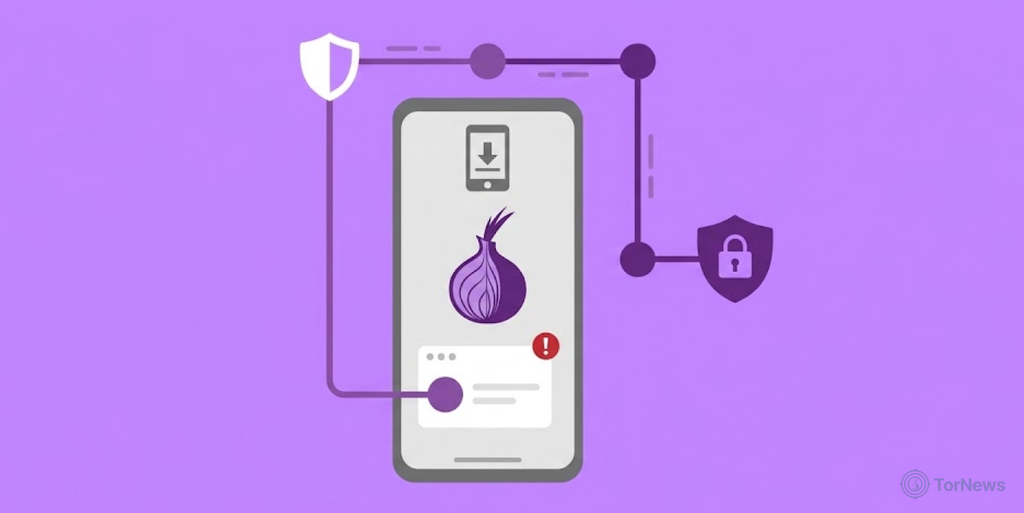
Setting up mobile privacy requires careful attention to official app releases. While steps for the setups are straightforward, using genuine applications keeps your device secure from third-party data tracking.
If you want to explore other privacy-focused options, our guide to the best dark web browsers can help you compare browsers designed for accessing the dark web and protecting your online privacy.
How to Use Tor Browser on Android
- Download the official app: Get the app from the Google Play Store or from the site torproject.org, avoiding third-party copies.
- Launch and Connect: Open the application and tap Connect. The app will establish an initial bootstrap connection to the Tor network.
- Configure security & bridges: Click on the gear icon to make security adjustments (Standard, Safer, or Safest). If your mobile provider blocks straight connections, opt for built-in bridges like obfs4 or Snowflake.
- Activate security features: Switch on HTTPS-Only Mode and implement security measures to avoid harmful scripts while browsing with your phone.
How to Use Tor Browser on iPhone
Due to iOS operating system restrictions and WebKit browser engine requirements, the Tor Project does not build an official Tor Browser for iOS. However, developers officially endorse Onion Browser (created by Mike Tigas) as the standard solution for Apple users.
- Download onion browser: Install Onion Browser directly from the Apple App Store.
- Initiate network connection: Launch the app and select your security mode. Gold level offers strict privacy, while Silver level provides broader website compatibility.
- Configure Orbot for System-Wide Routing (Optional): Onion Browser needs to be set up together with Orbot so that other apps on iOS would have their traffic sent via encrypted Tor nodes. (Note – the Orbot app is available on the App Store).
- Avoid Impostor apps: Many paid apps on the App Store claim to be official Tor products. Always verify that your app developer is listed as Mike Tigas for Onion Browser.
Operational Security Checklist
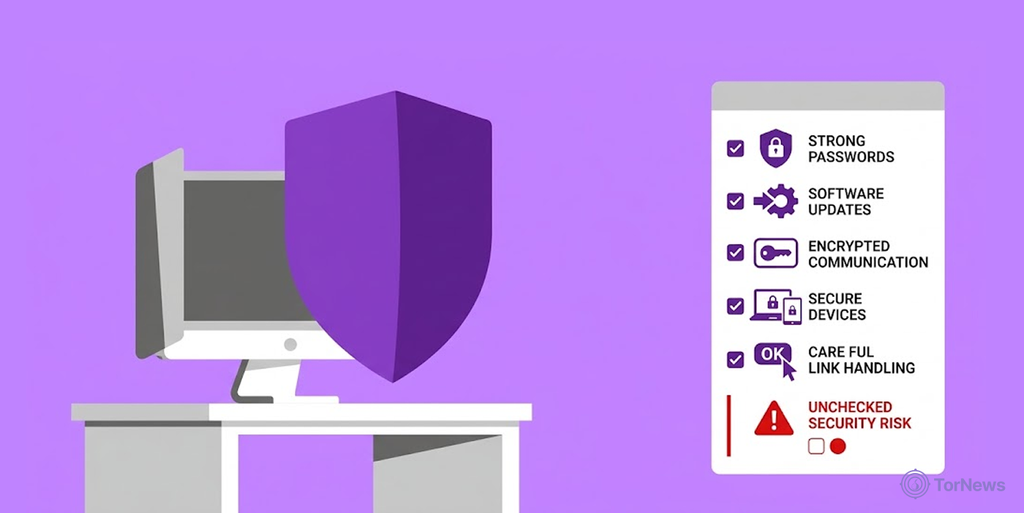
Preserving technical privacy requires strict security practices. The Operational Security (OPSEC) technique protects your anonymity in your browsing sessions from your real identity. Moreover, it prevents you from making any behavioral mistakes and exposing yourself as a result of technical failures and leakage.
You should stick to the following checklist based on different OPSEC principles in each browsing session:
- Understand local legal context: Be aware of the laws related to Tor and encryption based on the location where you are. While Tor is considered legal in most developed nations, using it raises issues in other countries with oppressive regimes. Be certain that your online actions conform with all the laws and privacy rules of your country.
- Have separate personalities: Never use any personal names, real email addresses, phone numbers, or credentials for clearweb while using a Tor session.
- Don’t mix clearweb and onion traffic: Never visit clearweb websites in one tab while browsing on onion addresses in another.
- Use Unique Nicknames: Have separate logins, passwords, and PGP keys for anonymous actions. Avoid using the same credentials as your main accounts for that.
- Maintain default window size: Keep letterboxing on and don’t maximize your screen. This helps to prevent tracking scripts from fingerprinting your monitor resolution.
- Process downloads securely offline: You have to disconnect your device from the internet before opening any documents, PDF files, or media you downloaded during a session.
- Avoid using third-party add-ons: Do not install any extra extensions, themes, or custom plug-ins; this will change your fingerprint and override the anti-fingerprinting feature in your browser.
- Disable unnecessary external devices: Protect yourself from exposure via media devices by turning off the webcams and microphones of your computer.
- Use updates immediately: Make sure that you keep both your operating system and Tor Browser updated. This helps to fix the problems immediately after discovery.
- Consider live operating systems: For the best privacy level, one may want to use live operating systems such as Tails or Whonix that direct every request through Tor automatically.
Threat Model: What Tor Browser Protects Against

A threat model defines what risks Tor Browser neutralizes and where its boundaries lie. Understanding these capabilities ensures you maintain realistic expectations for your online privacy and avoid dangerous operational mistakes.
Tor Browser effectively defends against several pervasive surveillance vectors:
- Local network monitoring: ISPs and/or local network operators do not have access to information about the particular websites or onion services a user visits. They only see that you sent some encrypted information to the entry node or bridge.
- Geographic tracking and geoblocking: Conceals your true IP address from destination servers by routing traffic through three random relays across the globe, effectively masking your physical location behind the final exit node.
- Cross-site fingerprinting: Standardizes your browser characteristics – such as screen dimensions, system fonts, and operating system signatures – making millions of Tor users appear identical to web tracking scripts.
- Mass surveillance profiling: Prevents ad networks and government entities from aggregating your search histories or building persistent behavioral profiles across different web sessions. Even with strong privacy protections, personal information can still end up exposed through data breaches, compromised accounts, or other security incidents. If you are concerned that your details may already be exposed, see our guide on your information is on the dark web to understand the warning signs and what you can do next.
However, Tor Browser cannot protect you under the following circumstances:
- Self-Inflicted Identity Disclosure: By entering your name, your phone number, and your payment details, you connect your identity instantly to your current session – this makes anonymity meaningless.
- Endpoint Viruses and OS Breaches: If your computer has a keylogger or spy software on it, hackers can obtain information about what you do on your computer. They capture your details such as keystrokes, screenshots, and raw data in advance before reaching your browser for encryption.
- Malicious Exit Node Interception: Tor encrypts traffic through its three-node circuit – but the final exit node must decrypt traffic before sending it to clearweb destinations. In case you visit a website that runs on HTTP and has no encryption, a malicious exit node operator can spy on your online activities, recording your data and even manipulating it.
- Targeted Zero-day Exploits: Sophisticated browser exploits that target missed vulnerabilities in Firefox and the underlying OS drivers can manage to break free from the sandbox in the browser to compromise your computer directly.
Conclusion
Getting your Tor Browser set up provides you with a strong foundation to engage in true online privacy. The installation process is simple across all major desktop and mobile operating systems; there are no complex workarounds.
Always verify PGP signatures before running any installer file. Choose your preferred security level to block harmful web scripts. Use pluggable bridges, such as obfs4 or Snowflake, if your local network blocks connections.
Digital privacy is an ongoing discipline that requires more than a one-off setup process. Always ensure that you install software updates on time to fix potential security vulnerabilities. Also, don’t mix personal account information with an anonymous browsing session.
FAQs
Using Tor Browser is legal in most parts of the world, as people who advocate for privacy and journalists use this software. However, in some countries where strict censorship is in place, people may be putting themselves in danger. So, using the application may have limitations.
No, the Tor Browser is not designed to hide all your computer activity. Its use will only impact the browsing activity done within the application. Other installed services on the computer will continue using their regular connections.
ISP only knows that the user is connected to the Tor network. It cannot determine the sites that the user accessed or the data they exchanged in the application.
No. A VPN sends your traffic through a single centralized server of a service provider. However, Tor sends your connection through three decentralized peer-operated relays, known as Entry, Middle, and Exit nodes.
This is due to the fact that the data passes through three different relays before getting to its final destination. The length of the path and the use of encryption layers in this process ensure anonymity, but lead to longer waiting periods.
While Incognito mode allows users not to save any history on their personal device, it cannot hide their IP address or protect users from Internet service providers or network administrators from tracking them online. In contrast, the Tor Browser masks the IP address of users, encrypting all their network activities.